Export Teachers
It is best practice to run teacher exports prior to importing the complete list of users for classes. This enables duplicate accounts to be identified and removed before importing a list of users. Follow the steps below to export teachers:
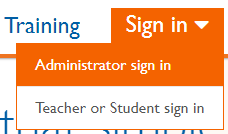
- Go to Savvas Realize and sign in as an Administrator.

- Go to the Users screen.
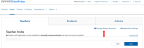
- Select Manage Teacher Accounts on the Teachers tab.

- Select the Manage button in the Manage Teachers section. This takes you to Savvas where you can complete the following steps to export teacher accounts.
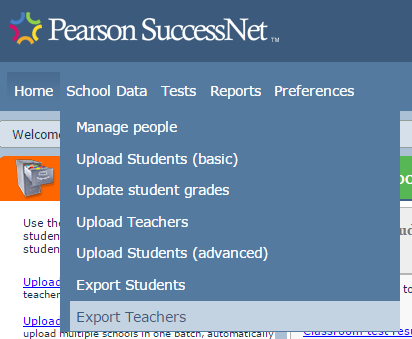
- Select Export Teachers in the School Data section on your home page or select Export Teachers in the School Data menu.

- Select a school and select Export. You will see the export is in progress. Select the refresh arrow every minute or two until the status changes to Completed.
- Select Save to download the file to your computer.
- Navigate to the downloaded file and open it with a spreadsheet program, such as Microsoft Excel. As a best practice, consider using Save As to add the school name and date to the filename since every export from Realize will have the same filename.
- Repeat this process for every school using Savvas products on the learning platforms.